Exercise I - Hello World (& BlueJ)
Description:
There's a tradition in Computer Programming text books - the "Hello World"
program. Generally one learns a new language by starting with a
short, simple program that will show "Hello World" on the screen.
Objectives:
- Learn the process to start a new programming project
- Learn to use BlueJ to enter the "code" for a program
- Use BlueJ to run the program
- See the basic elements of a Java program - especially
some common "syntax" elements such as:
- blocks (the {}),
- identifiers (named things like HelloWorld and hello),
- statements (like System.out.println(...),
- terminators (;),
- String constants ("Hello World!"),
- See how a syntax error (typo/bad grammar) is shown in BlueJ.
The Exercise:
This will be given as a sequence of steps you need to walk through in order
to complete the exercise. You need to proceed through each step. Feel free
to ask for help whenever you encounter a problem.
- We will be using BlueJ this semester for our work. Find the BlueJ icon
on the desktop and start it up.
- Go to the Project menu and select New Project.
- Be sure to put the project in a shared directory. Do NOT
leave it on the local machine.
- Name the project First Java Program
Your BlueJ window should now look something like this:

- Select the New Class button.
- Give the class the name HelloWorld. Notice that there are
no spaces and pay attention to the capital H and W.
Also be sure that Class is checked.
Your window should look like this:

- Your BlueJ window should look something like this:

- Notice the box that says HelloWorld. This represents
the file that will contain your first program.
- Notice that the HelloWorld box has diagonal slashes
through it. This indicates you haven't "compiled" the program
yet. I.e. it hasn't been converted to a form the computer
can run.
- Double click on the HelloWorld file. This will bring
up an editor to allow you to modify it. It should look like:

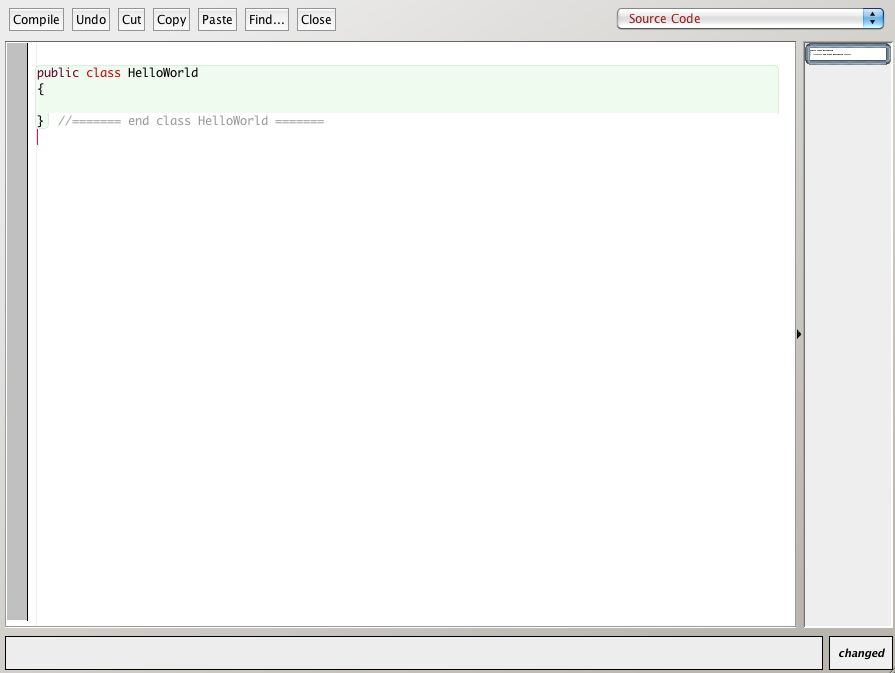
- We will delete a lot of the things that aren't relevant just yet.
Remove extra liens so it looks like:
- Now type in your first program. Make it look like:
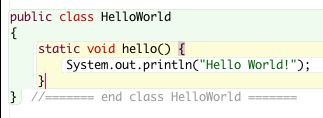
- Proofread what you just typed. Computers are very sensitive to
puncuation (semicolon) and capitalization. Make sure it's typed
exactly as indicated.
- You have now entered the "source code" for a very simple program.
This isn't yet in a form the computer can understand. It needs
to be compiled to the simpler instructions (binary code) that the
computer actually reads. Click the Compile button in
the top left of the window.
- If everything is typed in correctly, you should see a message in the
bottom of the window that says "Class compiled - no syntax errors",
like this:

If you have mistyped something, you will get an error message.
For example, if you neglected the semicolon it will look like
this:
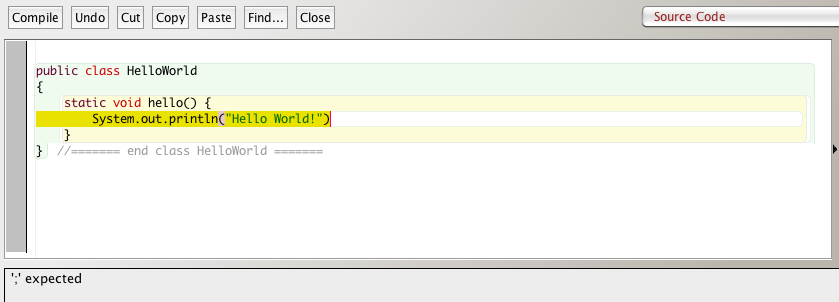
Notice how it has highlighted where it thinks the error might be and
it even says "; expected" at the bottom of the window.
Usually the compiler will give use clues about the nature of a
problem. In this case it tells us everything we really need to
know to fix the problem. Sometimes this isn't the case.
If you have any of these errors, fix them.
- Now look back at the main BlueJ window. It should look like:
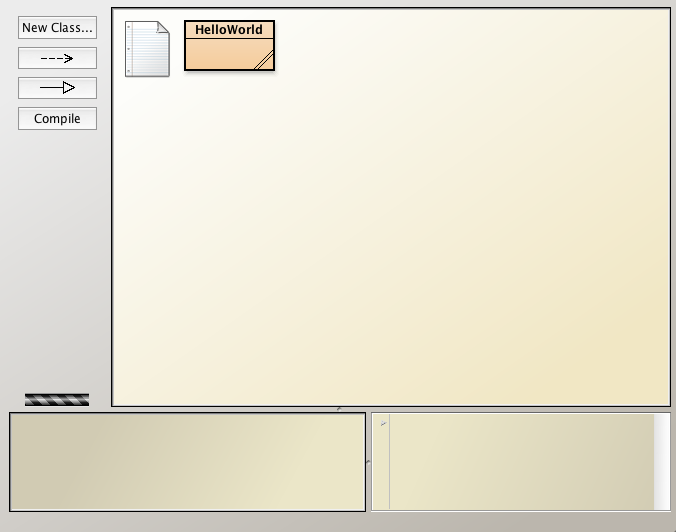
- Notice that the box for HelloWorld no longer has the
diagonal stripe. This indicates it is already compiled and can
be run. If it is still showing a diagonal stripe, go back to step 13.
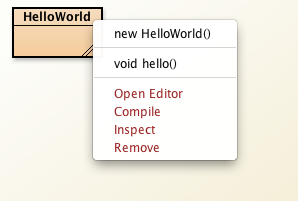
- Now click the right mouse button on the HelloWorld
box. This will bring up a menu of options like:
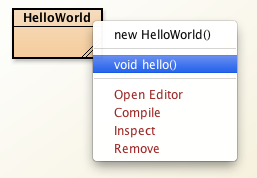
- Select the line that says void hello(). Like:
- This should pop up the Console window. This window
will be used to interact with our programs. It should look
something like:
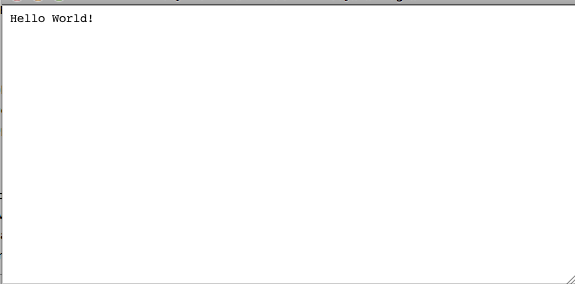
- If you see the words "Hello World!", Congrats - you've just
written your first Java program.
Questions, Experiments, & Reflection:
- Now modify your program so it says "Hello" followed by your name.
- What are the curly braces ({}) used for in a Java
program.
- Java programs contain "statements". A statement just states
something that the computer should do. Explain what the
statement "System.out.println("Hello World!") does.
- Make it print a second line that says "Goodbye" followed by your
name. (Hint: Copy and paste a second System.out.println(...)
in.)
- Change the two println to just print (i.e. remove
the ln). What happens when you run it? What do you think
the ln stands for?